
Device guide · Amazon Fire TV

How to set up IPTV on a Fire TV Stick

The Fire TV Stick is one of the easiest ways to watch IPTV on any TV with an HDMI port. Setup takes about 10–15 minutes.

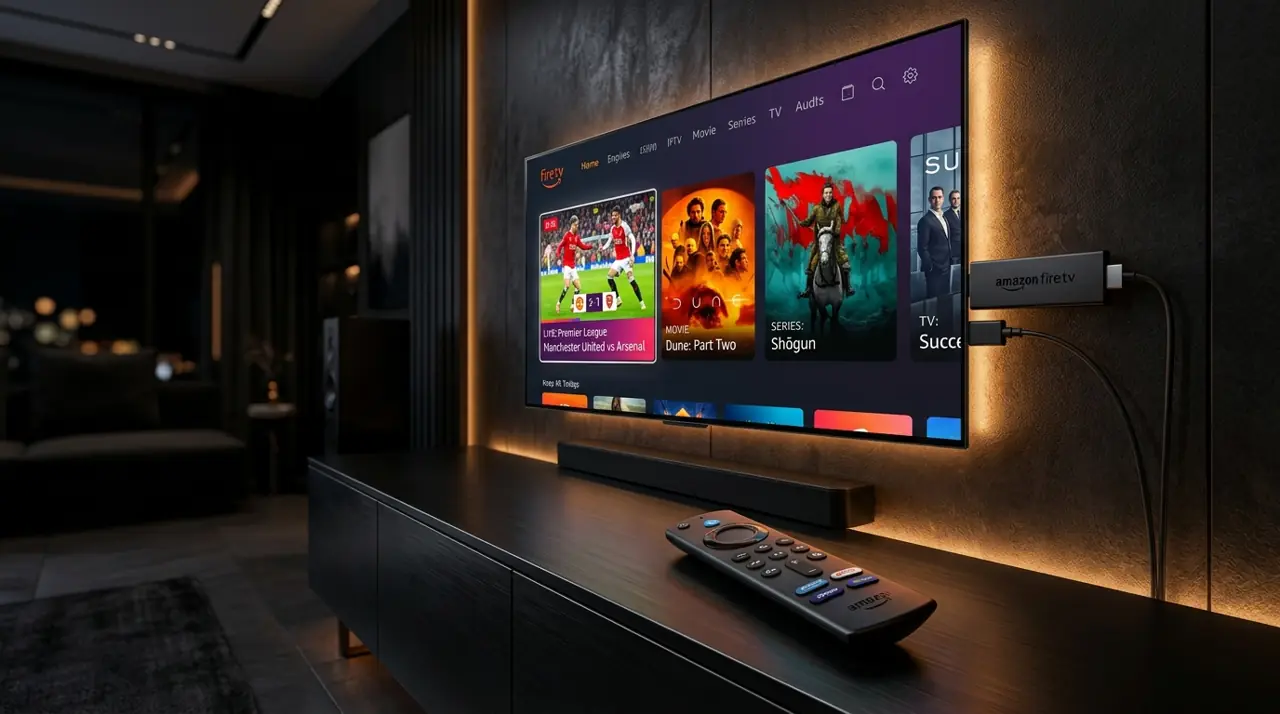
Amazon Fire TV Stick plugged into a wall-mounted TV with its remote on the TV cabinet

Short answer: install a player app on your Fire TV Stick (from the Amazon Appstore, or from the app developer’s website using the Downloader app), open it, and enter the M3U link or Xtream Codes login we send you.

Before you start

  • Your Fire TV device: any current Fire TV Stick works. For 4K you need a 4K model (Fire TV Stick 4K or 4K Max) and a 4K TV.
  • Internet: 25 Mbps or more is comfortable for 4K; HD needs less. See our internet speed guide.
  • Your login: sent on WhatsApp after you order a plan or request the free trial.
  • Power: use the power adapter that came with the stick rather than a TV USB port — low power causes freezes and restarts.

Step 1: Allow app installs from outside the Appstore

Many IPTV player apps aren’t in the Amazon Appstore, so Fire TV needs permission to install them. Menu names vary slightly between Fire OS versions.

  1. Go to Settings → My Fire TV.
  2. If you don’t see Developer Options, open About, select your device name and press the select button seven times until a message confirms you’re a developer.
  3. Open Developer Options → Install unknown apps and turn it on for the app you’ll use to download (usually Downloader).

Only install apps from official sources. An app from an unknown website can contain malware and access your network.

Step 2: Install a player app

  1. Search the Amazon Appstore for your chosen player first. If it’s there, install it and skip to step 3.
  2. If not, install the free Downloader app from the Appstore.
  3. Open Downloader and enter the download address published on the player developer’s official website.
  4. Install, then delete the installer file when Downloader offers to free up space.
TV showing a download progress message, with a Fire TV Stick plugged into the side

Not sure which player to choose? TiviMate and IPTV Smarters are popular on Fire TV. Our player app comparison explains the differences.

Step 3: Add your login

Open the player and choose how to add a playlist:

  • Xtream Codes (recommended): enter the server address, username and password exactly as sent. This usually loads channels, the TV guide and on-demand titles together.
  • M3U playlist: paste or type the full link. Use this if your app doesn’t support Xtream Codes.

The first load can take a minute while the app downloads the channel list and guide. M3U or Xtream Codes — which is better?

Step 4: Settings for smoother playback

  • Use 5 GHz Wi-Fi, or an Ethernet adapter for Fire TV if your router is close — it’s the single biggest stability upgrade (why).
  • Set the app’s time zone to your state so the TV guide lines up (EPG guide).
  • Restart the stick every few days: hold Select + Play/Pause for about five seconds.
  • Clear the player app’s cache in Settings → Applications → Manage installed applications if it becomes sluggish.
  • Still stuttering? Work through our buffering checklist.

Firestick questions

Which Fire TV Stick is best for IPTV?

A 4K or 4K Max model is the better choice if you have a 4K TV: it has more memory and newer Wi-Fi, which helps with large channel lists. The basic stick works fine for HD.

Is it safe to enable “Install unknown apps”?

It’s safe if you only install apps from their official developers. Turn the setting off again after installing if you prefer.

Can I use one login on several Fire TV Sticks?

You can install the login on several devices. Choose the 1, 2 or 3-device connection tier that matches how many screens you want to use at the same time.

Ready to set up your Fire TV?

Test it free for 24 hours, or choose a plan from A$14.99.

1 month

A$14.99 1 device · AUD

One-off payment for 1 month.
Good for trying a full month.

  • 50,000+ Live Channels
  • 180,000+ Movies & Series
  • Cricket · UFC · Boxing · PPV Events
  • Full Live Sports Coverage
  • Local Channels
  • Anti-Freeze Technology
  • 4K / UHD Quality
  • 24/7 Priority Support
Choose 1 month · 1 device

3 months

A$28.99 1 device · AUD

One-off payment for 3 months.
About A$9.66 a month.

  • 50,000+ Live Channels
  • 180,000+ Movies & Series
  • Cricket · UFC · Boxing · PPV Events
  • Full Live Sports Coverage
  • Local Channels
  • Anti-Freeze Technology
  • 4K / UHD Quality
  • 24/7 Priority Support
Choose 3 months · 1 device

6 months

A$47.99 1 device · AUD

One-off payment for 6 months.
About A$8.00 a month.

  • 50,000+ Live Channels
  • 180,000+ Movies & Series
  • Cricket · UFC · Boxing · PPV Events
  • Full Live Sports Coverage
  • Local Channels
  • Anti-Freeze Technology
  • 4K / UHD Quality
  • 24/7 Priority Support
Choose 6 months · 1 device

Choose 1, 2 or 3 devices above to see the matching one-off price here and at checkout. Extra devices are priced as multiples of the single-device price. All prices are in Australian dollars. No automatic renewal. Covered by our 7-day refund policy (conditions apply).
*Channel and on-demand line-ups change over time and aren’t guaranteed. Ask us before you buy if you need something specific.